
Hours Tracker Time Tracking
cribasoft, LLCBusiness
3.62.14K Reviews
- Version
- 5.0.14
- Installs
- 1.00M
- Age Rating
- Everyone
Screenshots
Our Review of Hours Tracker Time Tracking
 Analysis by Appyee
I like time-tracking tools best when they support a routine rather than turn every hour into a score to chase. Hours Tracker Time Tracking is aimed at people who need a practical record of paid work, whether they are hourly employees or independent workers. I’d treat it as a place to capture shifts and project time consistently, then use the record to check a paycheck, prepare an invoice, or notice where a workweek is going. That modest goal is more useful than expecting an app to fix a schedule by itself.
The app sits in the business category, is made by cribasoft, LLC, and is free to install. Its average rating is 3.7 from around 6,400 ratings, with over 1 million installs; it is rated for Everyone. The current version is 5.0.12 and requires Android 7.0 or later. In-app purchases range from $2.99 to $47.99 per item, so I’d check the available options in the app before building a workflow around anything that may require payment. Those details put it in the approachable end of the time-tracking market, though a free starting point does not mean every option will suit every user.
Start with the record you actually need
Before setting up categories, I’d decide what question I want the app to answer. An hourly worker may mainly need a reliable shift total. A contractor might need hours separated by client and project. A freelancer could care about both: time that can be billed and time spent on admin that should not be charged to a client. Keeping those purposes distinct is more useful than tracking everything under one broad “work” label.
That choice also helps keep the app manageable. If you create a category for every small task, choosing one becomes a chore; if you use only one category, the record may not help when you need to explain a total later. I’d start with a few meaningful buckets and add detail only when it answers a real question. For example, a consultant could use a client or project as the main separation and put the specific task in an entry note, instead of creating a new category for every meeting and email.
Getting Started with Hours Tracker
Diving into Hours Tracker Time Tracking is like slipping into a cozy pair of slippers. Setting it up is a breeze. Once you download it from the app store (yep, it's available for both Android and iOS), you'll be greeted with a clean, intuitive interface that basically screams, "Hey, I'm here to make your life easier!"
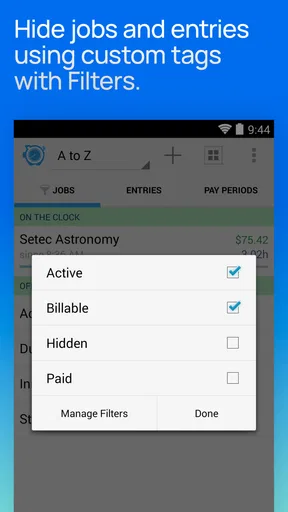
The first step is creating projects or categories for whatever you want to track. Freelancers will appreciate the ability to separate tasks by client or project, while the rest of us might use it for personal activities, like "Workout" or "Netflix Binge," because let's be honest, we all need balance.
Features That Stand Out
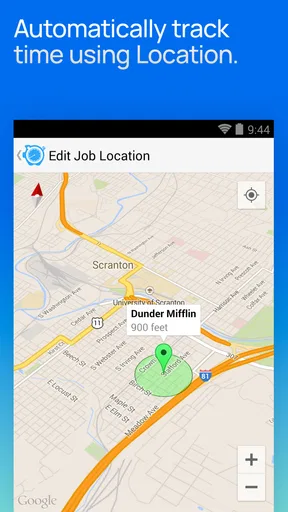
One of the coolest features is the automatic clock-in and clock-out option. You can set up your location, and the app will start tracking your time as soon as you arrive at the designated spot. It's like having a personal assistant who knows when you’ve truly started working, and when you’ve just been scrolling through memes.
For me, location-based clocking is most useful when a shift begins at a predictable workplace and I tend to forget the first tap of the day. It is less dependable as the only record when I work across several sites, travel between clients, or do part of my work from home: being at a location is not always the same as actively working. I’d regard automatic clocking as a convenience, then review the resulting entries rather than assume every arrival and departure maps perfectly to paid time.
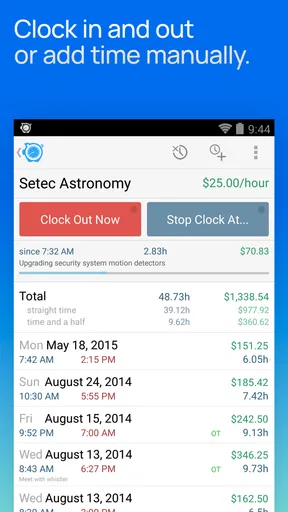
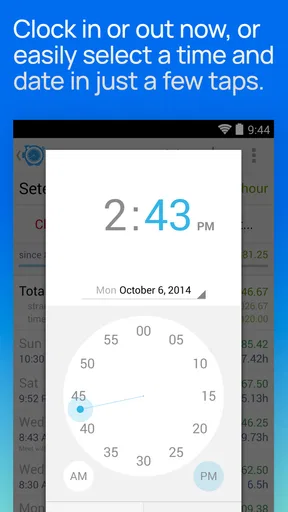
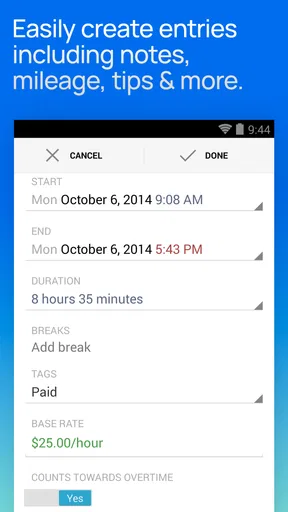
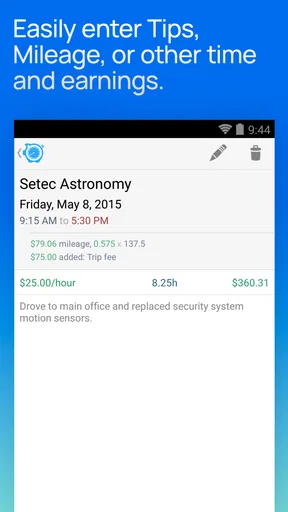
The app also offers manual entry for those times when you forget to clock in or out. This feature is super handy for those "oops" moments. Plus, you can add notes to each entry, helping you remember what exactly you were working on. Perfect for those of us with memory that’s a bit sieve-like.
A useful habit is to add a short, factual note while the work is still fresh: the job completed, the client call, or the reason a shift ended early. That gives a later report context without turning timekeeping into a diary. If you correct a missed clock-in, I’d make the adjustment as soon as practical and leave a clear note, especially when the record will support an invoice or a conversation about hours. The app can help preserve a record, but it cannot decide which time is billable or settle a disagreement for you.
Time Reports and Analysis
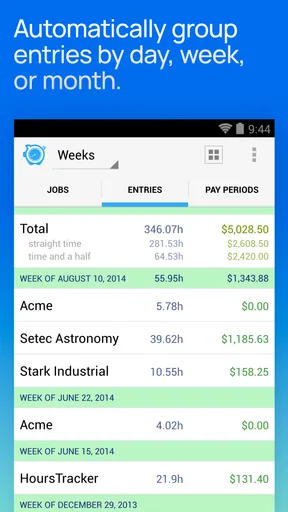
Now, onto one of my favorite parts: the reporting feature. The app lets you generate detailed reports based on your tracked time. You can customize these reports to show data by project, date, or even by client. This is a lifesaver when you need to send invoices or just want to see where your time is going. And let’s face it, there’s something oddly satisfying about seeing a pie chart of your productivity.
Reports are most valuable when the underlying entries are consistent. Before preparing an invoice, I’d scan the date range, make sure the right client or project is selected, and check any unusually long or short entries against my notes. That small review step can catch a forgotten clock-out before it becomes an awkward billing question. For payroll, I’d likewise compare the time record with the employer’s rules rather than treating an app total as an official approval.
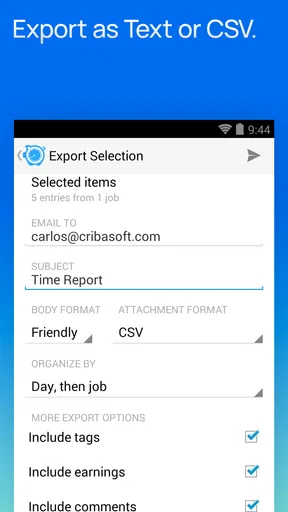
Another nifty feature is the ability to export these reports in various formats. Whether you need a PDF for a client or a CSV file for your own records, Hours Tracker has got you covered. It’s like having a Swiss Army knife for time management.
Exporting also gives you a sensible fallback: keep a copy of a finished reporting period in the format that fits the next step in your process. A PDF is easier to read or share as a fixed summary, while a CSV is more useful if you want to sort or work with the entries in a spreadsheet. I wouldn’t wait until a client asks for a breakdown to learn which format makes sense; testing one sample export early can show whether the report is clear enough for the person who will receive it.
Syncing Across Devices
If you're like me and switch between your phone and tablet, you'll appreciate the app's syncing capabilities. All your data stays up-to-date across devices, so you can pick up where you left off, no matter which screen you're looking at. It's seamless and stress-free, which is exactly what you need when you’re managing your time.
I’d still choose one device as the default for starting and stopping a shift, then use another mainly to review records. Switching devices mid-entry can make it harder to remember which screen has the current state, even when syncing is intended to keep things aligned. A quick check after changing devices is a simple safeguard, particularly before relying on a total for a timesheet or invoice.
I also found the integration with other platforms to be quite smooth. Whether you’re a Google Calendar fanatic or living the Apple life, you can sync your tracked time with other tools you’re using. It’s all about making your life as easy as possible, right?
Building a routine that survives a busy week
The hardest part of time tracking is rarely adding an entry; it is remembering the same small action when the day gets hectic. I’d connect clocking in with something already fixed in the day, such as arriving at the worksite or opening the first job file, and connect clocking out with the end-of-shift routine. For someone with changing assignments, a brief midday check can catch a timer left running before it distorts the day.
Consider a contractor who visits one client in the morning and handles a separate job in the afternoon. They can use the project or client distinction to keep the two blocks apart, add a note when the task changes, and check the day’s entries before leaving. That is more actionable than trying to reconstruct the week on Friday from memory. The same routine works for a part-time employee with irregular shifts: capture the start and end close to when they happen, then review the week before submitting hours.
I would avoid tracking every personal activity just because the option sounds interesting. A short experiment can be useful if you want to understand how a particular routine takes time, but maintaining too many categories creates extra decisions and can make the habit less likely to stick. For ongoing work records, a small structure that matches your actual billing or pay questions usually beats an elaborate taxonomy.
Where the workflow can break
Automatic location-based clocking is convenient, but it needs sensible expectations. Arriving at a work location may not mark the precise start of paid work, and leaving it may not mean the shift is finished. A shared workplace, off-site job, or day split between home and a client location can complicate the picture. I’d use it as a prompt or shortcut where the pattern is stable, not as a substitute for checking the hours that matter.
Manual correction is another point where a good habit matters. If you notice a missing stop much later, you may not remember the exact time or what happened around it. I’d correct obvious mistakes promptly, use notes to explain unusual entries, and keep the exported report that belongs to a completed pay or billing period. That approach does not make errors impossible, but it makes the record easier to understand when you revisit it.
There is also a difference between a time log and a full business system. This app can help organize hours and reports, but I would not choose it expecting it to replace accounting, payroll approval, project planning, or a team timesheet process. If several people need shared oversight, permissions, formal approvals, or a single company-wide workflow, a dedicated workplace platform may be a better fit. For an individual keeping their own hours, that extra machinery can be unnecessary.
Compared with a notebook or a basic timer, the advantage here is the path from captured hours to organized project or client reports and exportable records. A notebook can be flexible, and a phone timer may be enough for someone tracking one task occasionally, but both leave more work when totals need sorting later. On the other hand, people who want deep project planning or comprehensive invoicing may prefer a broader tool, even if it takes longer to set up. I see Hours Tracker as a middle ground: more structured than a bare timer, less suited to replacing a whole suite of business software.
Who will get the most from it
I’d recommend trying it if you work hourly, freelance, or take contractor jobs and need your own clear account of time by client or project. It is particularly practical for people who prepare their own invoices or want to compare logged work with a schedule, because notes, reports, and exports can support that routine. It may also suit a person with a predictable commute to one workplace who wants location-based clocking as a reminder, provided they are willing to review the entries.
I’d skip it if your employer requires a specific timekeeping system, if your hours must go through a manager’s approval workflow, or if you rarely need to separate work into projects and are content with a simple calendar note. It is also not the best choice for someone who expects a tracker to determine billable time automatically. The categories and records still depend on your judgment, and that is a meaningful part of using any time log responsibly.
Some practical questions come down to where the work happens and what you need afterward. If your shifts are mostly at one set location, automatic clocking may reduce forgotten starts and stops; if your work moves around, manual entries and quick reviews are likely more dependable. If you need to give a client a record, export a sample report and make sure its organization makes sense before the first invoice. If you are deciding whether the free app is enough, first identify which options you actually need and check the in-app purchase choices rather than assuming every feature is included at no cost.
Final Thoughts
In a nutshell, Hours Tracker Time Tracking is more than just a tool; it’s a little bit of peace of mind in app form. It’s user-friendly, packed with features, and surprisingly fun to use. Whether you’re trying to squeeze more productivity out of your day or just curious about where your time is going, this app is worth checking out.
So, if you’re ready to take control of your time (and maybe discover just how much time you actually spend on YouTube), give Hours Tracker a whirl. Who knows? It might just be the productivity boost you’ve been looking for.
Verdict
Strengths of Hours Tracker Time Tracking
- Intuitive interface for easy navigation.
- Customizable alerts for time management.
- Supports multiple projects tracking.
- Cloud sync across devices.
- Export data in various formats.
Limitations of Hours Tracker Time Tracking
- Limited free version features.
- Occasional sync delays.
- No integration with some popular apps.
- Battery consumption can be high.
- User interface lacks modern design.
Similar Picks in This Category
View All
LinkedIn: Community & Network
LinkedIn3.8

Zoom Workplace
zoom.com4.1

Microsoft Teams
Microsoft Corporation4.6

Meta Business Suite
Meta Platforms, Inc.4.6

Webex Meetings
Cisco Systems, Inc.4.5

TeamViewer Remote Control
TeamViewer4.4
Frequently Asked Questions
What is Hours Tracker Time Tracking and how does it work?
Hours Tracker Time Tracking is an app designed to help users monitor and manage their work hours efficiently. It allows users to clock in and out, track break times, and calculate total hours worked. The app also provides detailed reports and analytics, making it easy to see where your time is going and improve productivity.
Is Hours Tracker Time Tracking compatible with both Android and iOS devices?
Yes, Hours Tracker Time Tracking is available for both Android and iOS platforms. Users can download it from the Google Play Store for Android devices and the Apple App Store for iOS devices. The app ensures a seamless experience across different devices, allowing users to sync their data effortlessly.
Does Hours Tracker Time Tracking support multiple projects and clients?
Absolutely. The app is designed to accommodate users who work on multiple projects or with various clients. Users can create separate projects within the app, assign specific hours to each, and generate individual reports. This feature is particularly beneficial for freelancers and contractors who need to manage diverse workloads.
Are there any costs associated with using Hours Tracker Time Tracking?
While Hours Tracker Time Tracking offers a free version with basic features, there is also a premium version available. The premium version includes advanced features such as detailed reporting, cloud synchronization, and integration with other productivity tools. Users can choose the version that best suits their needs and budget.
How secure is my data on Hours Tracker Time Tracking?
Data security is a top priority for Hours Tracker Time Tracking. The app uses encryption to protect user data and secure servers to store information. Users can also set up password protection to prevent unauthorized access. Regular updates ensure that the app complies with the latest security standards, providing peace of mind to its users.
